By using the e-mail functionality in Microsoft Dynamics GP, you can embed documents into the body of an email message or send documents as attachments. You can send a single document, batches of documents, or send multiple documents using lists. When setting up the e-mail functionality, you can select which documents you can send and which customers and vendors should receive their documents in e-mail.
You can send the following documents in e-mail.
| Documents | |
|---|---|
| Sales Quote | Receivables finance charges |
| Sales Order | Receivables warranty |
| Sales Fulfillment Order | Receivables service/repair |
| Sales Invoice | Standard purchase order |
| Receivables Invoice | Blanket purchase order |
| Receivables Return | Drop-ship purchase order |
| Receivables Debit Memo | Vendor remittances |
| Receivables credit memo | |
A document can be sent in either an HTML, XPS, PDF, or DOCX file format type. You also can combine multiple documents to be sent in a single e-mail.
Sending customized messages
You can create predefined messages to send to your customers and vendors. These messages can be assigned to the documents that you want to send in e-mail so all customers or vendors receive the same message for selected documents. For example, you can send a promotional message to your customers when sending sales quotes in e-mail. You also can assign a specific message to an individual customer or vendor. For example, you can send a holiday greeting message to a customer. When you create a message, you can enter an e-mail address so your customer or vendor can reply to your e-mail.
Setup Customer Emails
- Open the Customer Maintenance screen (Cards>>Sales>>Customer)

- Click on the Address button
- Select your customer ID and Address ID
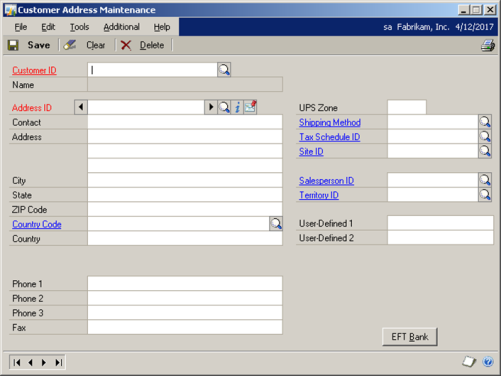
- Click on the Internet Button

- Enter the email address for this Customer/Address combination
- Click Save to save your changes.
Setup Customer Email Preferences
- Open the Customer Maintenance screen (Cards>>Sales>>Customer)
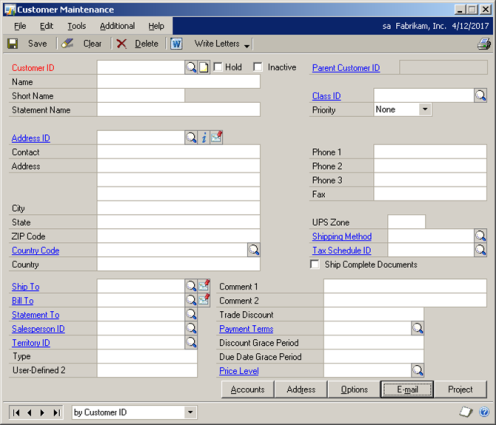
- Select your customer and click on the Email button

- Select the options for this customer, including a Message ID and Format for the Form you enable
- Select OK to save your changes.
You can follow similar steps on the Vendor Maintenance window.
 Terrapin Consulting is a premier provider of Dynamics GP Support. We can support you from anywhere in the USA & Canada. Terrapin Consulting is a premier provider of Dynamics GP Support. We can support you from anywhere in the USA & Canada. |  At Terrapin Consulting there’ll be a veteran CPA keeping an eye on your Dynamics GP system. At Terrapin Consulting there’ll be a veteran CPA keeping an eye on your Dynamics GP system. |
| www.terrcon.com / 843-376-1183 / accounting@terrcon.com | |